
Matimo MCP Server
Expose your Matimo tools to AI assistants via the Model Context Protocol. One command gives Claude Desktop, Cursor, Windsurf, or any MCP client access to Slack, GitHub, Gmail, Notion, HubSpot, and more.
Table of Contents
Section titled “Table of Contents”- SDK Selection: TypeScript vs Python
- Quick Start (5 minutes)
- Step-by-Step Setup
- Client Configuration
- Available Tool Packages
- CLI Reference
- HTTP Mode
- Secret Management
- Tool Filtering
- Approval over MCP
- Tool Metadata & Error Responses
- Programmatic Usage
- Architecture
- Troubleshooting
SDK Selection: TypeScript vs Python
Section titled “SDK Selection: TypeScript vs Python”Both TypeScript and Python SDKs serve MCP; see known differences in the release notes.
| Feature | TypeScript | Python |
|---|---|---|
| Core MCP server | Yes | Yes |
| Stdio transport (Claude Desktop) | Yes | Yes |
| HTTP transport (remote / Docker) | Yes | Yes |
| Auth parameter filtering | Yes | Yes |
Approval via MCP elicitation (_matimo_approved only with trustClientApproval) |
Yes | Yes |
context option, policy context (agent id, roles) for every MCP call |
Yes | Yes |
| Pre-resolved secrets (memory storage) | Yes | Yes |
| Skill resources (MCP resources/list) | Yes | Yes |
| Bearer token auth (HTTP) | Yes | Yes |
| Tool filtering (allow/deny lists) | Yes | Yes |
| Test coverage | 95%+ | 95%+ |
Which SDK?
Section titled “Which SDK?”- TypeScript: Use if you’re in a Node.js environment or need the fastest startup
- Python: Use if you prefer Python, need async/await in your agent, or want CrewAI / standard Python asyncio integration
Both have identical capabilities and security features. Choose based on your language preference.
Implementation details:
- TypeScript:
typescript/packages/core/src/mcp/, see mcp-server.ts - Python:
python/packages/core/src/matimo/mcp/, see README.md
Quick Start (5 minutes)
Section titled “Quick Start (5 minutes)”TypeScript
Section titled “TypeScript”mkdir my-ai-tools && cd my-ai-toolsnpm init -y2. Install Matimo + the tool packages you want
Section titled “2. Install Matimo + the tool packages you want”npm install @matimo/core @matimo/cli @matimo/slack @matimo/github3. Set your API keys
Section titled “3. Set your API keys”export SLACK_BOT_TOKEN=xoxb-your-slack-tokenexport GITHUB_TOKEN=ghp_your-github-token4. Run the setup wizard
Section titled “4. Run the setup wizard”npx matimo mcp setupThis scans your project, lists all discovered tools, shows which API keys are set () or missing (), and outputs ready-to-paste configs for Claude Desktop, Cursor, and HTTP mode.
5. Start the server
Section titled “5. Start the server”npx matimo mcpThat’s it. All installed @matimo/* tools are auto-discovered and exposed over stdio.
Python
Section titled “Python”- Create a new project (or use an existing one)
mkdir my-ai-tools && cd my-ai-toolspython -m venv .venvsource .venv/bin/activate # or .venv\Scripts\activate on Windows- Install Matimo + the tool packages you want
pip install matimo matimo[mcp]
# Add specific tool packages (optional)pip install matimo-slack matimo-github matimo-gmail matimo-notion- Set your API keys
export SLACK_BOT_TOKEN=xoxb-your-slack-tokenexport GITHUB_TOKEN=ghp_your-github-token- Start the server
import asynciofrom matimo import Matimofrom matimo.mcp.server import MCPServer, MCPServerOptions
async def main():    matimo = await Matimo.init(        auto_discover=True,  # Discover installed tool packages    )
    server = MCPServer(        matimo,        MCPServerOptions(transport="stdio")    )
    await server.start()
if __name__ == "__main__":    asyncio.run(main())
Then run:
python mcp_server.pyThat’s it. All installed matimo-* tools are auto-discovered and exposed over stdio.
Step-by-Step Setup
Section titled “Step-by-Step Setup”Prerequisites
Section titled “Prerequisites”- Node.js 22.19+: Download
- npm or pnpm: comes with Node.js
Install packages
Section titled “Install packages”Pick the tool packages you need:
# Core + CLI (always required)npm install @matimo/core @matimo/cli
# Add the tools you wantnpm install @matimo/slack        # Slack messaging, channels, reactionsnpm install @matimo/github       # GitHub repos, issues, PRsnpm install @matimo/gmail        # Gmail send, read, draftsnpm install @matimo/notion       # Notion pages, databasesnpm install @matimo/hubspot      # HubSpot CRM, contacts, dealsnpm install @matimo/postgres     # PostgreSQL queriesnpm install @matimo/twilio       # SMS, MMS messagingnpm install @matimo/mailchimp    # Email campaigns, audiences
Or install everything at once:
npm install @matimo/core @matimo/cli @matimo/slack @matimo/github @matimo/gmail @matimo/notion @matimo/hubspot @matimo/postgres @matimo/twilio @matimo/mailchimpSet up API keys
Section titled “Set up API keys”Each tool package requires its own API credentials. Set them as environment variables:
# Slackexport SLACK_BOT_TOKEN=xoxb-your-token
# GitHubexport GITHUB_TOKEN=ghp_your-token
# Gmailexport GMAIL_ACCESS_TOKEN=ya29.your-token
# Notionexport NOTION_API_KEY=ntn_your-key
# HubSpotexport MATIMO_HUBSPOT_API_KEY=pat-your-key
# PostgreSQL: a connection string (recommended) ...export MATIMO_POSTGRES_URL=postgresql://your-user:your-password@localhost:5432/your-database# ... or the separate variables# export MATIMO_POSTGRES_HOST=localhost# export MATIMO_POSTGRES_PORT=5432# export MATIMO_POSTGRES_USER=your-user# export MATIMO_POSTGRES_PASSWORD=your-password# export MATIMO_POSTGRES_DB=your-database
# Twilio (the sender number is the tool's "from" argument, not an environment variable)export TWILIO_ACCOUNT_SID=AC...export TWILIO_AUTH_TOKEN=your-auth-token
# Mailchimpexport MAILCHIMP_API_KEY=your-key-us1
Tip: Use a
.envfile instead of exporting each variable. See Secret Management.
Verify your setup
Section titled “Verify your setup”npx matimo mcp setupSample output:
Matimo MCP Setup
Scanning for installed tool packages...
Found 22 tools across 2 package(s):
  slack (16 tools)     • slack_send_channel_message     • slack-list-channels     • slack_get_channel_history     • slack_search_messages     • slack_send_dm     ... and 11 more
  gmail (6 tools)     • gmail-send-email     • gmail-list-messages     • gmail-get-message     • gmail-create-draft     • gmail-delete-message     ... and 1 more
Required environment variables:
  SLACK_BOT_TOKEN  GMAIL_ACCESS_TOKEN
Claude Desktop config (paste into Settings → Developer → MCP Servers):
{  "mcpServers": {    "matimo": {      "command": "npx",      "args": ["matimo", "mcp"],      "env": {        "SLACK_BOT_TOKEN": "xoxb-your-token",        "GMAIL_ACCESS_TOKEN": "<your-token>"      }    }  }}
Client Configuration
Section titled “Client Configuration”Claude Desktop
Section titled “Claude Desktop”- Open Claude Desktop
- Go to Settings → Developer → Edit Config
- Paste the config from
npx matimo mcp setup, or use this template:
{ "mcpServers": { "matimo": { "command": "npx", "args": ["matimo", "mcp"], "env": { "SLACK_BOT_TOKEN": "xoxb-your-token", "GITHUB_TOKEN": "ghp_your-token" } } }}- Restart Claude Desktop
- Look for the tools icon in the chat, your Matimo tools should appear
Important: Claude Desktop can start commands from the root directory (
/), not your project folder. Matimo looks for@matimo/*packages in thenode_modulesabove the working directory first, then above where@matimo/coreitself is installed, so install@matimo/cliand the tool packages in the same project and it will still find them. If tools still aren’t detected, point at your own tool folders with"args": ["matimo", "mcp", "--tool-paths", "/path/to/your/tools"]. There is noMATIMO_CWDsetting.
Cursor
Section titled “Cursor”Create .cursor/mcp.json in your project root:
{ "mcpServers": { "matimo": { "command": "npx", "args": ["matimo", "mcp"], "env": { "SLACK_BOT_TOKEN": "xoxb-your-token", "GITHUB_TOKEN": "ghp_your-token" } } }}Windsurf
Section titled “Windsurf”Create .windsurf/mcp.json in your project root:
{ "mcpServers": { "matimo": { "command": "npx", "args": ["matimo", "mcp"], "env": { "SLACK_BOT_TOKEN": "xoxb-your-token", "GITHUB_TOKEN": "ghp_your-token" } } }}Claude Desktop (Python)
Section titled “Claude Desktop (Python)”- Create a Python script to run the MCP server (e.g.,
mcp_server.py) - Open Claude Desktop
- Go to Settings → Developer → Edit Config
- Paste this config:
{ "mcpServers": { "matimo": { "command": "python", "args": ["/path/to/mcp_server.py"], "env": { "SLACK_BOT_TOKEN": "xoxb-your-token", "GITHUB_TOKEN": "ghp_your-token" } } }}- Restart Claude Desktop
- Look for the tools icon, your Matimo tools should appear
Cursor (Python)
Section titled “Cursor (Python)”Create .cursor/mcp.json in your project root:
{ "mcpServers": { "matimo": { "command": "python", "args": ["mcp_server.py"], "env": { "SLACK_BOT_TOKEN": "xoxb-your-token", "GITHUB_TOKEN": "ghp_your-token" } } }}Windsurf (Python)
Section titled “Windsurf (Python)”Create .windsurf/mcp.json in your project root:
{ "mcpServers": { "matimo": { "command": "python", "args": ["mcp_server.py"], "env": { "SLACK_BOT_TOKEN": "xoxb-your-token", "GITHUB_TOKEN": "ghp_your-token" } } }}HTTP Mode (Remote / Docker)
Section titled “HTTP Mode (Remote / Docker)”For remote servers, Docker containers, or MCP clients that connect over HTTP/HTTPS:
npx matimo mcp --transport http --port 3000The server auto-generates a bearer token on startup:
Matimo MCP server running at http://localhost:3000/mcp
Bearer Token (auto-generated):   550e8400-e29b-41d4-a716-446655440000
   Connect your MCP client:   url: http://localhost:3000/mcp   Authorization: Bearer 550e8400-e29b-41d4-a716-446655440000
   To use a fixed token, set MATIMO_MCP_TOKEN or use --token <value>
Configure your MCP client with the displayed URL and token. For clients that support remote MCP:
{ "mcpServers": { "matimo": { "url": "http://your-server:3000/mcp", "headers": { "Authorization": "Bearer 550e8400-e29b-41d4-a716-446655440000" } } }}Python HTTP Mode
Section titled “Python HTTP Mode”Start the server:
import asynciofrom matimo import Matimofrom matimo.mcp.server import MCPServer, MCPServerOptions
async def main():    matimo = await Matimo.init(auto_discover=True)
    server = MCPServer(        matimo,        MCPServerOptions(            transport="http",            port=3000,            mcp_token="your-secret-token"  # or use MATIMO_MCP_TOKEN env var        )    )
    await server.start()
if __name__ == "__main__":    asyncio.run(main())
Then run:
python mcp_server_http.pyConfigure your MCP client:
{ "mcpServers": { "matimo": { "url": "http://localhost:3000/mcp", "headers": { "Authorization": "Bearer your-secret-token" } } }}Available Tool Packages
Section titled “Available Tool Packages”| Package | Tools | Required Env Vars |
|---|---|---|
@matimo/slack |
Send messages, list channels, search, reactions, threads, file uploads, DMs, create channels, set topics | SLACK_BOT_TOKEN |
@matimo/github |
Repository management, issues, pull requests, code search | GITHUB_TOKEN |
@matimo/gmail |
Send email, list messages, read messages, create drafts, delete | GMAIL_ACCESS_TOKEN |
@matimo/notion |
Pages, databases, blocks, search | NOTION_API_KEY |
@matimo/hubspot |
Contacts, companies, deals, tickets, engagements | MATIMO_HUBSPOT_API_KEY |
@matimo/postgres |
Execute SQL queries (read + write) | MATIMO_POSTGRES_URL, or MATIMO_POSTGRES_HOST, _PORT, _USER, _PASSWORD, _DB |
@matimo/twilio |
Send SMS/MMS, manage messages | TWILIO_ACCOUNT_SID, TWILIO_AUTH_TOKEN |
@matimo/mailchimp |
Audiences, subscribers, campaigns | MAILCHIMP_API_KEY |
@matimo/microsoft |
Graph search, files, mail, Teams, calendar, SharePoint | MICROSOFT_GRAPH_ACCESS_TOKEN |
@matimo/bruno |
Create, import and run Bruno API collections | none, but the bru CLI must be on PATH (npm install -g @usebruno/cli) |
@matimo/composio |
449 governed Composio tools across 14 toolkits | COMPOSIO_API_KEY, plus a Composio user or connected account per call |
Auto-Discovery Mechanism
Section titled “Auto-Discovery Mechanism”Both TypeScript and Python SDKs discover tools identically via entry points + filesystem scan:
How It Works
Section titled “How It Works”When you call MatimoInstance.init(autoDiscover: true) or Matimo.init(auto_discover=True):
- Entry Points Discovery: Scans installed
@matimo/*(TypeScript) ormatimo-*(Python) packages - Filesystem Scan: Recursively scans
toolPathsfor tool definitions (YAML or JavaScript/Python files) - Registry: Registers all discovered tools so they’re available over MCP
Auto-Discovered Tool Inventory
Section titled “Auto-Discovered Tool Inventory”| Provider | Tool Count | Status |
|---|---|---|
| Core (9 built-in + 15 meta-tools) | 24 | Included by default |
@matimo/slack (or matimo-slack) |
16 | Requires @matimo/slack package + SLACK_BOT_TOKEN |
@matimo/github (or matimo-github) |
22 | Requires @matimo/github package + GITHUB_TOKEN |
@matimo/gmail (or matimo-gmail) |
6 | Requires @matimo/gmail package + GMAIL_ACCESS_TOKEN |
@matimo/notion (or matimo-notion) |
7 | Requires @matimo/notion package + NOTION_API_KEY |
@matimo/postgres (or matimo-postgres) |
1 | Requires @matimo/postgres package + MATIMO_POSTGRES_URL or MATIMO_POSTGRES_* |
@matimo/twilio (or matimo-twilio) |
4 | Requires @matimo/twilio package + TWILIO_ACCOUNT_SID and TWILIO_AUTH_TOKEN |
@matimo/hubspot (or matimo-hubspot) |
50 | Requires @matimo/hubspot package + MATIMO_HUBSPOT_API_KEY |
@matimo/mailchimp (or matimo-mailchimp) |
7 | Requires @matimo/mailchimp package + MAILCHIMP_API_KEY |
@matimo/microsoft (or matimo-microsoft) |
9 | Requires @matimo/microsoft package + MICROSOFT_GRAPH_ACCESS_TOKEN |
@matimo/bruno (or matimo-bruno) |
7 | Requires @matimo/bruno package and the bru CLI on PATH |
| Total (all native providers installed) | 153 | 129 provider tools + 24 core |
| Total (default, core only) | 24 | n/a |
@matimo/composio adds another 449 tools when installed. That is too many to expose to most clients, so use --tools to pick a subset.
TypeScript Example
Section titled “TypeScript Example”import { MatimoInstance } from '@matimo/core';
// Auto-discover all installed @matimo/* packagesconst matimo = await MatimoInstance.init({ autoDiscover: true, // Optional: add custom tool directories toolPaths: ['./my-tools', '/path/to/other-tools'],});
// Print what was discoveredconst tools = matimo.listTools();console.log(`✓ Discovered ${tools.length} tools`);
// Start the MCP serverconst server = new MCPServer(matimo, { transport: 'stdio' });await server.start();Python Example
Section titled “Python Example”import asynciofrom matimo import Matimofrom matimo.mcp.server import MCPServer, MCPServerOptions
async def main(): # Auto-discover all installed matimo-* packages matimo = await Matimo.init( auto_discover=True, # Optional: add custom tool directories tool_paths=['./my-tools', '/path/to/other-tools'], )
# Print what was discovered tools = matimo.list_tools() print(f'✓ Discovered {len(tools)} tools')
# Start the MCP server server = MCPServer(matimo, MCPServerOptions(transport='stdio')) await server.start()
if __name__ == "__main__": asyncio.run(main())Tools discovered per package
Section titled “Tools discovered per package”Both SDKs discover the same tool definitions from each installed package (counted from the YAML definitions shipped in 0.2.0):
| Package | TypeScript | Python |
|---|---|---|
| core (built-in tools and meta-tools) | 24 | 24 |
| slack | 16 | 16 |
| github | 22 | 22 |
| gmail | 6 | 6 |
| notion | 7 | 7 |
| postgres | 1 | 1 |
| twilio | 4 | 4 |
| hubspot | 50 | 50 |
| mailchimp | 7 | 7 |
| microsoft | 9 | 9 |
The server lists only the packages installed in its environment, plus any toolPaths you pass.
CLI Reference
Section titled “CLI Reference”matimo mcp [options] Start the MCP servermatimo mcp setup Run the setup wizardOptions
Section titled “Options”| Flag | Short | Default | Description |
|---|---|---|---|
--transport |
-t |
stdio |
Transport mode: stdio or http |
--port |
-p |
3000 |
HTTP port (only with --transport http) |
--host |
127.0.0.1 |
Interface to bind (only with --transport http). Use 0.0.0.0 in containers or for remote clients, and then use HTTPS |
|
--tools |
all | Comma-separated allowlist of tool names | |
--exclude |
none | Comma-separated denylist of tool names | |
--token |
auto | Bearer token for HTTP mode. Auto-generated if not set. Also reads MATIMO_MCP_TOKEN env var. |
|
--https |
off | Enable HTTPS | |
--self-signed |
off | Auto-generate a self-signed TLS cert (implies --https) |
|
--cert |
Path to TLS certificate PEM file (implies --https) |
||
--key |
Path to TLS private key PEM file (implies --https) |
||
--secrets |
env |
Secret resolver chain: env, dotenv, vault, aws |
|
--env-file |
.env |
Path to .env file (with --secrets dotenv) |
|
--vault-path |
secret/data/matimo |
Vault KV v2 path (with --secrets vault) |
|
--aws-secret-id |
matimo/credentials |
AWS Secrets Manager ID (with --secrets aws) |
|
--tool-paths |
auto | Comma-separated paths to tool directories | |
--skill-paths |
auto | Comma-separated paths to skill directories |
Examples
Section titled “Examples”# Default: stdio mode for Claude Desktop / Cursornpx matimo mcp
# HTTP mode on custom portnpx matimo mcp --transport http --port 8080
# Only expose specific toolsnpx matimo mcp --tools slack_send_channel_message,slack-list-channels
# Expose everything except Postgres toolsnpx matimo mcp --exclude postgres-execute-sql
# HTTP with explicit bearer tokennpx matimo mcp --transport http --token my-secret-token
# HTTPS with auto-generated self-signed certificatenpx matimo mcp --transport http --self-signed
# HTTPS with your own certificatesnpx matimo mcp --transport http --cert /path/to/cert.pem --key /path/to/key.pem
# HTTPS + custom port + fixed tokennpx matimo mcp --transport http --port 8443 --self-signed --token my-secret
# Use .env file for secretsnpx matimo mcp --secrets dotenv --env-file ./config/.env
# Chain resolvers: try env vars first, then Vaultnpx matimo mcp --secrets env,vault --vault-path secret/data/matimoHTTP Mode
Section titled “HTTP Mode”HTTP mode runs a stateful HTTP server for remote access, Docker containers, or MCP clients that support HTTP transport.
Endpoints
Section titled “Endpoints”| Method | Path | Auth Required | Description |
|---|---|---|---|
POST |
/mcp (or /) |
Yes | Start a new MCP session (JSON-RPC initialize) |
GET |
/mcp (or /) |
Yes | Open SSE stream for an existing session (Mcp-Session-Id header required) |
DELETE |
/mcp (or /) |
Yes | Close an existing session (Mcp-Session-Id header required) |
GET |
/health |
No | Health check, returns {"status":"ok","tools":<count>} |
OPTIONS |
* |
No | CORS preflight |
Bearer Token Authentication
Section titled “Bearer Token Authentication”HTTP mode always requires a bearer token. The server handles this automatically:
| Priority | Source | Example |
|---|---|---|
| 1st | --token flag |
--token my-secret |
| 2nd | MATIMO_MCP_TOKEN env var |
export MATIMO_MCP_TOKEN=my-secret |
| 3rd | Auto-generated | UUID printed to console on startup |
Clients must include Authorization: Bearer <token> in every request (except /health).
# Test health (no auth needed)curl http://localhost:3000/health
# Test auth: initialize a new sessioncurl -H "Authorization: Bearer <token>" \     -H "Content-Type: application/json" \     -H "Accept: application/json, text/event-stream" \     -H "MCP-Protocol-Version: 2025-11-25" \     -d '{"jsonrpc":"2.0","id":1,"method":"initialize","params":{"protocolVersion":"2025-11-25","capabilities":{},"clientInfo":{"name":"test","version":"0.1.0"}}}' \     http://localhost:3000/mcp
Note: The MCP spec requires clients to include an
MCP-Protocol-Versionheader on all requests after initialization. The server currently accepts requests without this header for backwards compatibility.
Tip: For production, set a fixed token with
MATIMO_MCP_TOKENor--tokenso it survives server restarts.
MCP Spec Compliance Notes
Section titled “MCP Spec Compliance Notes”Matimo HTTP mode is built on the official @modelcontextprotocol/sdk and implements the
Streamable HTTP transport
specification. The following areas are fully compliant:
- Stateful sessions via
Mcp-Session-Id(SDK-managed) - Per-session
McpServerinstance (not shared across clients) - Bearer token authentication
POST /mcpfor JSON-RPC,GET /mcpfor SSE,DELETE /mcpfor session closeisError: truein tool failure responses- stdio mode: no non-JSON-RPC output on stdout (logger silenced)
Known gaps against the spec (tracked for a future release):
| Gap | Spec requirement | Impact |
|---|---|---|
Origin header not validated |
Spec §2.0.1: servers MUST validate Origin to prevent DNS rebinding |
Local-only servers using --self-signed are lower risk; production servers behind a reverse proxy should add Origin validation at the proxy layer |
MCP-Protocol-Version header not enforced |
Spec §2.7: invalid version must return 400 |
No impact with current MCP SDK clients; all known clients send a valid version |
Enable HTTPS for encrypted connections. Two options:
Self-signed certificate (development)
Section titled “Self-signed certificate (development)”npx matimo mcp --transport http --self-signed- Generates an RSA 2048 key + X.509 certificate via
openssl(key via Node.jscrypto) - SAN covers
DNS:localhostandIP:127.0.0.1, valid for 365 days - Cached in
.matimo/certs/, reused across restarts - Because the cert is self-signed, clients won’t trust it by default, see HTTPS client can’t connect (self-signed cert) for options ranked by security
Output:
Matimo MCP server running at https://localhost:3000/mcpHTTPS enabled (self-signed certificate)   Clients may need to disable cert verification for self-signed certs
Bearer Token (auto-generated):   07b9b426-5f26-4149-9f12-5f83224ceffe
Production certificates
Section titled “Production certificates”npx matimo mcp --transport http --cert /etc/ssl/cert.pem --key /etc/ssl/key.pemUse certificates from Let’s Encrypt, your cloud provider, or your internal CA.
Docker
Section titled “Docker”FROM node:22-alpine
# openssl needed for self-signed cert generationRUN apk add --no-cache openssl
# Install Matimo globallyRUN npm install -g @matimo/core @matimo/cli @matimo/slack @matimo/github
EXPOSE 3000
CMD ["matimo", "mcp", "--transport", "http", "--host", "0.0.0.0", "--port", "3000", "--self-signed"]# Builddocker build -t matimo-mcp .
# Run with your API keysdocker run -p 3000:3000 \ -e SLACK_BOT_TOKEN=xoxb-your-token \ -e GITHUB_TOKEN=ghp_your-token \ -e MATIMO_MCP_TOKEN=my-secret \ matimo-mcpFor production, mount real certificates instead of using --self-signed:
docker run -p 3000:3000 \ -v /etc/letsencrypt/live/mydomain:/certs:ro \ -e SLACK_BOT_TOKEN=xoxb-your-token \ -e MATIMO_MCP_TOKEN=my-secret \ matimo-mcp \ matimo mcp --transport http --cert /certs/fullchain.pem --key /certs/privkey.pemSecret Management
Section titled “Secret Management”The MCP server needs API keys and tokens to call tool APIs. Matimo supports four secret resolver backends that can be chained.
How It Works
Section titled “How It Works”- On startup, the server scans all tool definitions for auth placeholders (e.g.,
{SLACK_BOT_TOKEN}) - The secret resolver chain resolves each placeholder, first resolver to return a value wins
- Resolved secrets are seeded into
process.envso tool execution works seamlessly
Resolver: env (Default)
Section titled “Resolver: env (Default)”Reads from environment variables. Checks MATIMO_<KEY> first, then <KEY>.
export SLACK_BOT_TOKEN=xoxb-your-tokennpx matimo mcpResolver: dotenv
Section titled “Resolver: dotenv”Reads from a .env file. Great for development.
SLACK_BOT_TOKEN=xoxb-your-tokenGITHUB_TOKEN=ghp_your-tokennpx matimo mcp --secrets dotenvnpx matimo mcp --secrets dotenv --env-file ./config/.envResolver: vault
Section titled “Resolver: vault”Reads from HashiCorp Vault KV v2. Requires node-vault peer dependency.
npm install node-vault
export VAULT_ADDR=https://vault.example.comexport VAULT_TOKEN=hvs.your-token
npx matimo mcp --secrets vault --vault-path secret/data/matimo
Features: TTL-based caching (5 min default), stale fallback on connection errors, namespace support.
Resolver: aws
Section titled “Resolver: aws”Reads from AWS Secrets Manager. Requires @aws-sdk/client-secrets-manager peer dependency.
npm install @aws-sdk/client-secrets-manager
# Store secrets as JSON in AWS Secrets Manager:# Secret value: {"SLACK_BOT_TOKEN": "xoxb-...", "GITHUB_TOKEN": "ghp_..."}
npx matimo mcp --secrets aws --aws-secret-id matimo/credentials
Features: TTL-based caching (5 min), uses standard AWS credential chain (env, IAM roles, SSO).
Chaining Resolvers
Section titled “Chaining Resolvers”Resolvers are tried in order. First match wins.
# Local dev: .env file first, then Vault as fallbacknpx matimo mcp --secrets dotenv,vault
# Production: env vars first, then AWSnpx matimo mcp --secrets env,aws
Tool Filtering
Section titled “Tool Filtering”Allowlist: only expose specific tools
Section titled “Allowlist: only expose specific tools”npx matimo mcp --tools slack_send_channel_message,slack-list-channelsDenylist: expose everything except certain tools
Section titled “Denylist: expose everything except certain tools”npx matimo mcp --exclude postgres-execute-sqlBoth: allowlist first, then denylist filters the result
Section titled “Both: allowlist first, then denylist filters the result”npx matimo mcp --tools slack_send_channel_message,slack_send_dm --exclude slack_send_dmApproval over MCP
Section titled “Approval over MCP”An MCP server is usually driven by a model, so the model must never be able to approve its own calls. When a call needs approval, the tool declares requires_approval: true, it is an HTTP DELETE or a command tool (the 0.2.0 secure default), or a sql/command argument contains a destructive keyword (details), Matimo asks the person using the client:
- The server sends an MCP elicitation request to the client: the tool name, its description and the arguments, with a single yes/no field.
- The client shows it to its user, and the call runs only if they accept.
- A client that does not support elicitation gets an error result saying there is no one to ask, never a hint that the model could approve the call itself.
Options for clients without elicitation:
| Option | Effect |
|---|---|
MATIMO_APPROVED_PATTERNS="get_*,list_*" on the server |
Matching tools never ask |
trustClientApproval: true (trust_client_approval=True) |
Tools that need approval advertise an optional _matimo_approved argument, and a call with _matimo_approved: true counts as approved. Only for clients that confirm every call with their user themselves, the argument comes from the client and model. |
context (PolicyContext) sets the identity and roles every call from this server is checked with, for example { agentId: 'claude-desktop', roles: ['admin'] } on a single-user local server, so that user can approve agent-written tools with matimo_approve_tool. Without it, calls carry no roles. The model cannot set this context; it comes only from the server’s options. See Where roles come from.
trustClientApproval and context are programmatic options (below); the matimo mcp CLI does not set them.
Tool Metadata & Error Responses
Section titled “Tool Metadata & Error Responses”Standard MCP annotations
Section titled “Standard MCP annotations”Every tool Matimo registers over MCP carries the protocol’s standard tool annotations, readOnlyHint, destructiveHint, idempotentHint, openWorldHint, plus a humanized title (slack_get_channel_history → "Slack Get Channel History"). Clients that understand these hints (Claude Desktop, Cursor, etc.) can use them to decide when to prompt a user before invoking a tool, independent of Matimo’s own policy gate.
Annotations are derived from execution.type and HTTP method, not from the aggregate policy risk tier, the two can diverge (a GET and a DELETE tool can share a risk tier while having opposite readOnlyHint/destructiveHint):
| Execution | readOnlyHint |
destructiveHint |
idempotentHint |
openWorldHint |
|---|---|---|---|---|
type: function / type: command |
false |
true |
false |
true |
HTTP GET |
true |
false |
true |
true |
HTTP PUT |
false |
false |
true |
true |
HTTP DELETE |
false |
true |
true |
true |
HTTP POST / PATCH / other |
false |
false |
false |
true |
A tool with requires_approval: true always gets destructiveHint: true, regardless of the table above.
Structured error responses
Section titled “Structured error responses”Failed tool calls return isError: true with a structuredContent field carrying machine-readable error data, instead of only a freeform error string:
{ "content": [{ "type": "text", "text": "Error: Rate limit exceeded" }], "isError": true, "structuredContent": { "code": "RATE_LIMIT_EXCEEDED", "statusCode": 429, "retryable": true, "message": "Rate limit exceeded" }}This applies uniformly to every error path: a thrown MatimoError (its code/details.statusCode/details.retryable map directly), any other exception (code: "UNKNOWN_ERROR"), and an approval-rejection response (code: "EXECUTION_FAILED"), so a client can always branch on structuredContent.code rather than parsing the text. See the Error Codes Reference for the full code list and what retryable means for each.
Programmatic Usage
Section titled “Programmatic Usage”Use the MCP server directly from TypeScript:
import { MCPServer, createMCPServer } from '@matimo/core';
// One-liner: start with defaultsconst server = await createMCPServer({  transport: 'stdio',  autoDiscover: true,});
// Or with full controlconst server = new MCPServer({  transport: 'http',  port: 3000,  tools: ['slack_send_channel_message'],  mcpToken: 'my-secret',  https: true,  selfSigned: true,  secretResolver: {    resolvers: [      { type: 'env' },      { type: 'vault', secretPath: 'secret/data/myapp' },    ],  },});
await server.start();
// Get the active token (useful when auto-generated)const token = server.getActiveToken();console.log(`Token: ${token}`);
// Later...await server.stop();
MCPServerOptions
Section titled “MCPServerOptions”| Option | Type | Default | Description |
|---|---|---|---|
transport |
'stdio' | 'http' |
'stdio' |
Transport mode |
port |
number |
3000 |
HTTP port |
tools |
string[] |
all | Tool name allowlist |
excludeTools |
string[] |
none | Tool name denylist |
mcpToken |
string |
auto-generated | Bearer token for HTTP mode |
toolPaths |
string[] |
auto | Explicit tool directory paths |
autoDiscover |
boolean |
true |
Auto-discover @matimo/* packages |
https |
boolean |
false |
Enable HTTPS |
selfSigned |
boolean |
false |
Auto-generate self-signed certificate |
certPath |
string |
Path to TLS certificate PEM | |
keyPath |
string |
Path to TLS private key PEM | |
secretResolver |
SecretResolverChainConfig |
env-only | Secret resolver chain config |
skillPaths |
string[] |
none | Skill directories, exposed as skills://<name> resources |
policyConfig |
PolicyConfig |
defaults | Policy for the server’s instance |
untrustedPaths |
string[] |
none | Directories whose tools must pass the content rules |
approvalSecret / approvalDir |
string |
env / cwd | Where matimo_approve_tool approvals are signed and stored |
trustClientApproval |
boolean |
false |
Accept _matimo_approved: true from the client (Approval over MCP) |
context |
PolicyContext |
none | Identity and roles applied to every call |
Python’s MCPServerOptions has the same options in snake_case. Two defaults differ: port is 3100 and auto_discover is False in Python.
Architecture
Section titled “Architecture”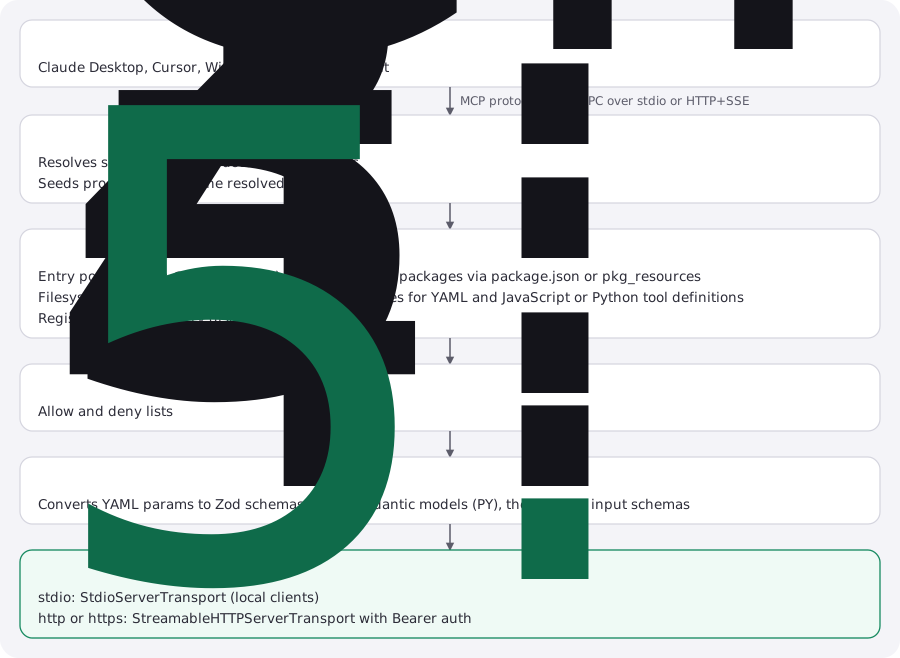
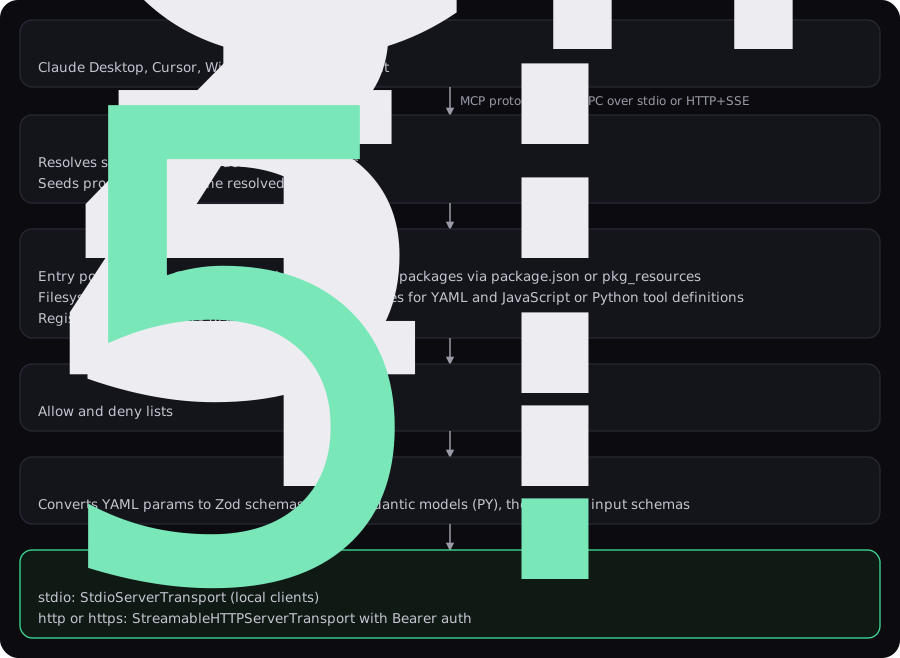
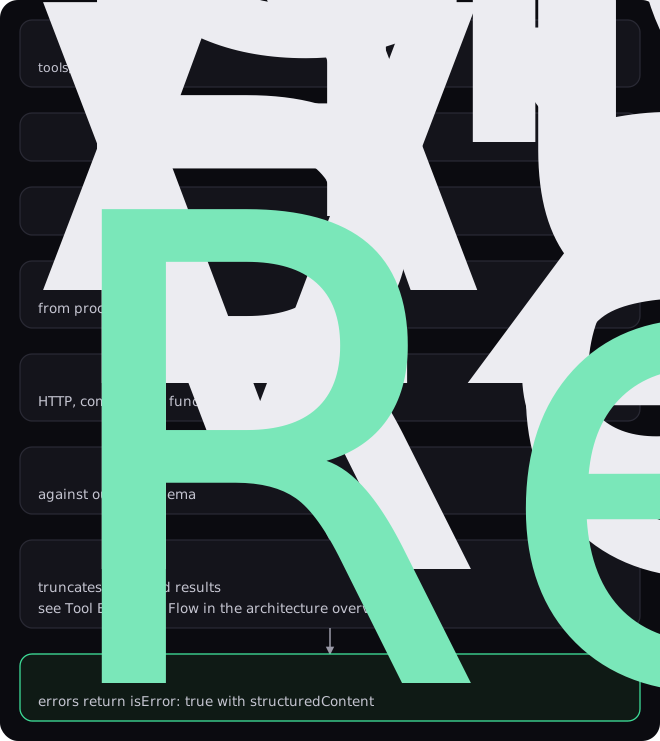
A tool call then flows like this:

Python Implementation Details
Section titled “Python Implementation Details”The Python MCP implementation follows the TypeScript one; both SDKs serve MCP (see known differences in the release notes):
Core Features
Section titled “Core Features”| Component | TypeScript | Python | Details |
|---|---|---|---|
| Core server | MCPServer |
MCPServer |
Wraps Matimo instance, registers MCP handlers |
| Auth filtering | isAuthParameter() |
_is_auth_parameter() |
Strips secrets from schemas |
| Approval | createElicitationApprovalCallback() |
create_elicitation_approval_callback() |
Asks the client’s user via elicitation; _matimo_approved only with trustClientApproval |
| Secret resolution | seedEnvironmentSecrets() |
_seed_environment_secrets() |
Pre-resolves at startup, stores in memory |
| Skill resources | registerSkillResources() |
_register_skill_resources() |
Registers skills as MCP resources |
| HTTP transport | StreamableHTTPServerTransport |
StreamableHTTPSessionManager |
Stateless HTTP with bearer auth, CORS |
| Stdio transport | StdioServerTransport |
stdio_server() |
JSON-RPC over pipe for Claude Desktop |
| Tool annotations | deriveToolAnnotations() |
derive_tool_annotations() |
readOnlyHint/destructiveHint/idempotentHint/openWorldHint |
| Structured errors | structuredContent in registerTool() catch block |
_build_error_result() |
code/statusCode/retryable/message on every error path, incl. a generic-exception catch-all |
Auto-Discovery Implementation
Section titled “Auto-Discovery Implementation”| Aspect | TypeScript | Python | Status |
|---|---|---|---|
| Package discovery | Scans node_modules/@matimo/* |
importlib.metadata entry points (matimo.providers) |
Same result, different mechanism |
| Filesystem traversal | fs.readdirSync() recursive scan |
os.walk() recursive scan |
Identical |
| YAML loading | js-yaml + Zod validation |
PyYAML + Pydantic validation | Identical |
| Caching | In-memory Map | In-memory dict | Identical |
| Tools loaded (core + all native providers) | 153 | 153 | Same set |
| Discovery mechanism | Same | Same | Identical |
Key locations:
- TypeScript:
typescript/packages/core/src/core/tool-loader.ts(entry points + filesystem) - Python:
python/packages/core/src/matimo/core/loader.py(entry points + filesystem)
Language differences:
- Package discovery: TypeScript scans
node_modules/@matimo/*, Python readsimportlib.metadataentry points - Filesystem scanning: TypeScript uses
fs.*, Python usesos.* - YAML parsing: Both use standard libraries with Zod (TS) / Pydantic (PY) validation
- Async/Await: Python is async-first; TypeScript is top-level await
Other Implementation Details
Section titled “Other Implementation Details”Key differences:
- Language: Python uses async/await throughout; TypeScript uses top-level await
- HTTP: Python uses pure-ASGI with async context management; TypeScript uses Node HTTP + Node streams
- Secret storage: Both store in memory after resolution, never written back to process env, Python uses
dict[str, str], TypeScript usesRecord<string, string> - Tests: Run
pnpm testintypescript/ormake testinpython/
For full implementation details, see python/packages/core/src/matimo/mcp/README.md.
Troubleshooting
Section titled “Troubleshooting”TypeScript
Section titled “TypeScript”Tools not showing up in Claude Desktop
Section titled “Tools not showing up in Claude Desktop”- Check your config path: On macOS it’s
~/Library/Application Support/Claude/claude_desktop_config.json - Restart Claude Desktop after editing the config
- Install the tool packages next to
@matimo/cli. Claude Desktop can start the server from/; Matimo then finds packages relative to where it is installed. If your tools still aren’t detected, pass their folder:"args": ["matimo", "mcp", "--tool-paths", "/Users/you/your-project/tools"] - Run the setup wizard to verify packages are installed:
Terminal window npx matimo mcp setup
No tools found / “No @matimo/* tool packages found”
Section titled “No tools found / “No @matimo/* tool packages found””Make sure @matimo/* packages are installed in your project:
npm ls | grep matimo# Should show @matimo/core, @matimo/cli, @matimo/slack, etc.If empty, install them:
npm install @matimo/core @matimo/cli @matimo/slack“Tool requires approval”
Section titled ““Tool requires approval””The call needs a person’s approval and the client cannot ask one (it does not support MCP elicitation). Use a client that supports elicitation, pre-approve the tool on the server with MATIMO_APPROVED_PATTERNS, or, only if the client confirms every call with its user, start the server with trustClientApproval: true. See Approval over MCP.
Self-signed certificate fails to generate
Section titled “Self-signed certificate fails to generate”Requires openssl to be installed:
# macOS (pre-installed)openssl version
# Linux (Debian/Ubuntu)sudo apt install openssl
# Alpine (Docker)apk add --no-cache openssl
# Or skip self-signed and provide your own certs:npx matimo mcp --transport http --cert cert.pem --key key.pem
HTTPS client can’t connect (self-signed cert)
Section titled “HTTPS client can’t connect (self-signed cert)”Self-signed certificates are not trusted by default. There are several ways to handle this, ordered from most to least secure.
Option 1: Use a locally trusted certificate (recommended)
Section titled “Option 1: Use a locally trusted certificate (recommended)”mkcert creates certificates signed by a local CA that
your OS and browser trust automatically. No bypass needed, no security warnings.
# Install mkcertbrew install mkcert          # macOSsudo apt install mkcert      # Linux (or build from source)
# One-time: trust the local CA system-widemkcert -install
# Generate a cert for localhostmkcert localhost 127.0.0.1 ::1# → produces localhost+2.pem and localhost+2-key.pem
# Start Matimo MCP with the trusted certnpx matimo mcp --transport http --cert localhost+2.pem --key localhost+2-key.pem
All clients (curl, Node.js, browsers) on the same machine now connect without any special flags.
Option 2: Use a CA-trusted certificate
Section titled “Option 2: Use a CA-trusted certificate”For staging or shared environments, use a certificate from a public CA (e.g. Let’s Encrypt) or your organisation’s internal CA. Pass it to the server:
npx matimo mcp --transport http --cert cert.pem --key key.pemOption 3: Narrow TLS bypass for development clients only
Section titled “Option 3: Narrow TLS bypass for development clients only”If you can’t use a trusted certificate, scope the bypass to only the MCP connection rather than the entire Node process.
curl, the -k / --insecure flag applies to that request only:
curl -k https://localhost:3000/healthNode.js, pass a custom https.Agent scoped to your MCP client.
Never set process.env.NODE_TLS_REJECT_UNAUTHORIZED = '0'; it disables certificate validation
globally for every HTTPS request in the process, including requests to OpenAI, Slack, or any
other service.
import https from 'https';
// Development only, never use rejectUnauthorized: false in productionconst devAgent = new https.Agent({ rejectUnauthorized: false });
const client = new MultiServerMCPClient({  mcpServers: {    matimo: {      transport: 'streamable_http',      url: 'https://localhost:3000/mcp',      // Pass the agent via fetch options if your MCP client supports it.    },  },});
Security note: Disabling certificate verification, even for a single connection, allows an attacker on the same network to impersonate the server, intercept the bearer token, and issue arbitrary tool calls. Only ever do this on a loopback interface (
localhost/127.0.0.1) in a controlled local development environment. Never use it in production, CI/CD pipelines, or shared environments.
Debug logging
Section titled “Debug logging”Enable verbose logging to see tool discovery, auth resolution, and execution details:
MATIMO_LOG_LEVEL=debug npx matimo mcpNote: Debug logging is automatically silenced in stdio mode (stdout must be clean JSON-RPC). Logs go to stderr in stdio mode.
Optional peer dependencies
Section titled “Optional peer dependencies”Vault and AWS secret resolvers require extra packages:
npm install node-vault # For --secrets vaultnpm install @aws-sdk/client-secrets-manager # For --secrets awsTroubleshooting (Python)
Section titled “Troubleshooting (Python)”“MCP Python SDK not installed”
Section titled ““MCP Python SDK not installed””Error: MatimoError(EXECUTION_FAILED): MCP Python SDK not installed. Install with: pip install matimo[mcp]
Solution:
pip install "matimo[mcp]"# or explicitlypip install "mcp>=2.0"The Python MCP server requires mcp 2.0 or newer. If you installed mcp 1.x, upgrade it with pip install -U "mcp>=2.0".
No tools discovered
Section titled “No tools discovered”Error: Tools list is empty in Claude Desktop
Solution:
- Verify Matimo can find your tools:
from matimo import Matimo
matimo = await Matimo.init(auto_discover=True)print(f"Found {len(matimo.list_tools())} tools")- If empty, ensure tool packages are installed:
pip list | grep matimo# Should show matimo, matimo-slack, matimo-github, etc.- If missing, install them:
pip install matimo matimo-slack matimo-github“Stdio mode corrupt output / JSON-RPC decode error”
Section titled ““Stdio mode corrupt output / JSON-RPC decode error””Cause: Logging to stdout during stdio transport interferes with JSON-RPC
Solution: Already fixed in the implementation, start() suppresses the matimo logger in stdio mode. If you see this error, check for custom log handlers writing to stdout:
# DON'T do thisimport logginglogging.basicConfig(stream=sys.stdout, level=logging.DEBUG)
# DO this instead (if you need logging)logging.basicConfig(stream=sys.stderr, level=logging.DEBUG)
HTTP 401 Unauthorized
Section titled “HTTP 401 Unauthorized”Error: 401 Unauthorized when connecting to HTTP mode
Solution:
- Check the bearer token is set:
export MATIMO_MCP_TOKEN="your-secret-token"python mcp_server.py- Pass it in the MCP client config:
{ "mcpServers": { "matimo": { "url": "http://localhost:3000/mcp", "headers": { "Authorization": "Bearer your-secret-token" } } }}Secrets not resolved
Section titled “Secrets not resolved”Error: KeyError: 'SLACK_BOT_TOKEN' during tool execution
Solution:
Ensure your .env file is readable and in the project root:
SLACK_BOT_TOKEN=xoxb-your-tokenGITHUB_TOKEN=ghp_your-tokenAlso verify Matimo is initialized with proper paths:
from matimo import Matimo
matimo = await Matimo.init(    ["./tools"],  # ← tool paths    auto_discover=True)
asyncio event loop errors
Section titled “asyncio event loop errors”Error: RuntimeError: no running event loop or RuntimeError: asyncio.run() called from a running event loop
Solution:
Use asyncio.run() at the top level:
import asyncio
async def main():    matimo = await Matimo.init(auto_discover=True)    # ...
# Start the event loop hereif __name__ == "__main__":    asyncio.run(main())
Don’t call asyncio.run() from inside async functions or Jupyter notebooks with existing loops.